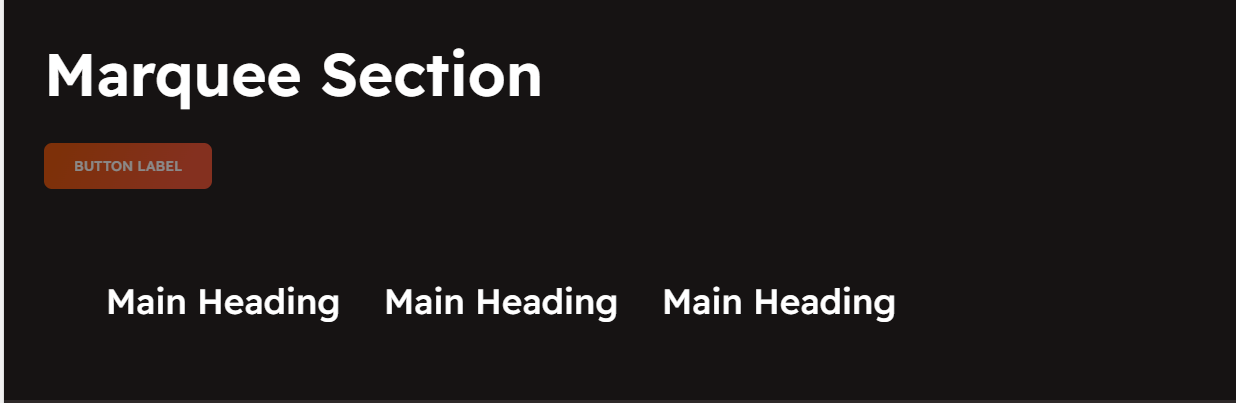
Marquee Section
The Marquee Section allows you to create a scrolling text or image effect, making it ideal for announcements, brand highlights, or promotional messages.
Go to Shopify Admin > Online Store > Themes.
Click Customize on your active theme.
In the Theme Editor, click Add Section > Marquee Section.
Show Full Width: Expands the section across the entire screen width.
Right & Left Spacing : Add spacing to the Full Width layout (applies in full-width mode).
Heading: Set a custom title (e.g., "Hot & Top Trends").
Heading Size: Choose for size Small, Medium, or Large
Subheading: Add additional text if needed.
Body Text: Add a description (e.g., "Best arrivals this week").
Button Label: Add text (e.g., "Shop Now").
Button Link: Set the URL destination.
Color scheme : You can customize the section’s appearance by changing the text color, background color, and more using preset color options.
Use outline button style: Change the button to an outlined style.
Column alignment: Column can be aligned as per the content alignment requirement (Left,Right)
Animation Speed:Can Adjust the speed of the marquee animation as slow,medium,fast
Enable Reverse Animation: Reverse animation refers to playing an animation backward, meaning the final state returns to the initial state in a reversed motion
Layout Style:Can style the marquee as with separator line or border it can be with border using the given option (Default, Boxed, With Seperator)
Padding: Top Padding and Bottom Padding are used to adjust the spacing above and below a section in Shopify, improving the layout and readability.
Custom class: The Shopify allows you to apply unique CSS styles to specific sections, blocks, or elements within your theme.
Without adding block to marquee the section seems to be empty
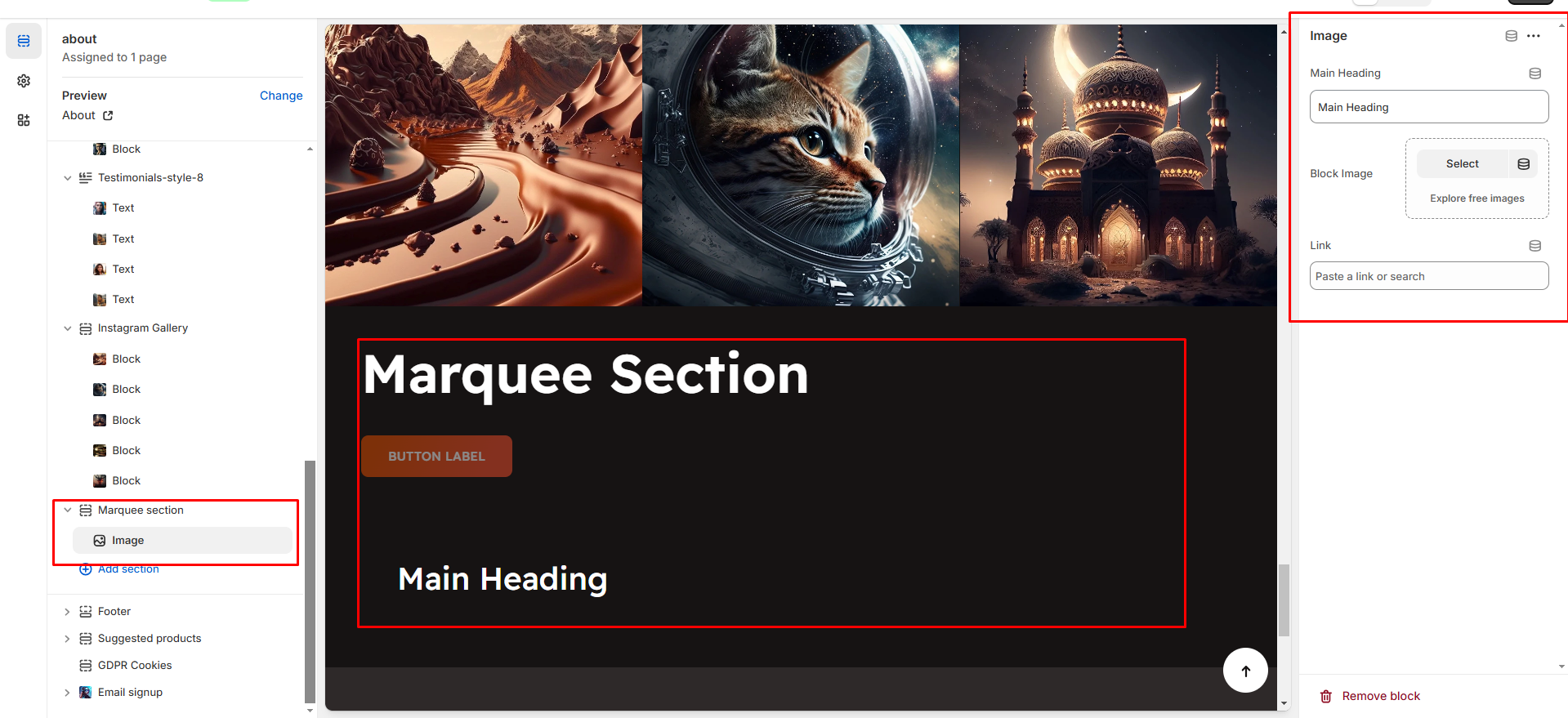
Main Heading: Enter the marquee text (e.g., "New Arrivals Available Now!").
Block Image:Upload the image for the marquee block
Link: The content can be linked by adding Url using link option